Set each video to Private in YouTube Studio under Content › Visibility, or hide the whole channel from the account settings screen (Settings › Channel › Advanced settings in current Studio builds). Private hides videos from everyone except invited accounts; hiding privatizes your name, videos, likes, subscriptions and subscribers.
Private, unlisted, or hidden: what each option actually hides
Four states get mixed up constantly: public, unlisted, private, and hidden. Only the last two keep a video off the public web.
- Public shows the video to anyone, through search, suggestions and your channel page.
- Unlisted leaves the video fully playable at its URL for anyone who has that link.
- Private hides the video from everyone except the accounts you invite individually.
- Hidden channel is the broader switch, and it lives in account settings rather than on any single upload.
YouTube Help is blunt about the limits of unlisted: an unlisted video can appear in YouTube search results if anyone adds it to a public playlist. That single sentence explains most "but I thought it was hidden" panics. A link you sent to one colleague can be pasted into a playlist by a stranger a year later.
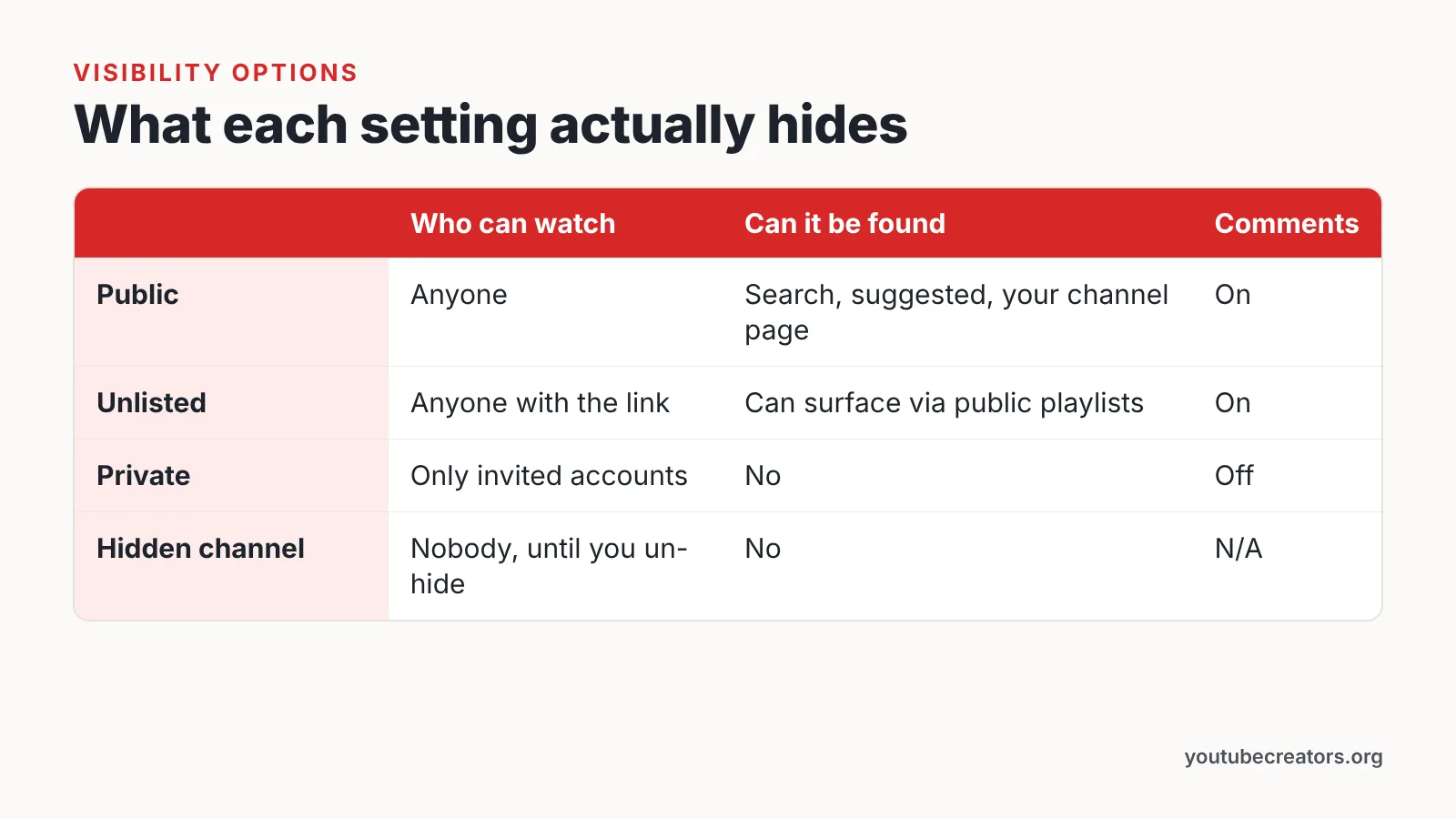
| Option | Who can watch | Can it be found | Comments |
|---|---|---|---|
| Public | Anyone | Search, suggested, your channel page | On |
| Unlisted | Anyone with the link | Can surface via public playlists | On |
| Private | Only invited accounts | No | Off |
| Hidden channel | Nobody, until you un-hide | No | N/A |
According to YouTube Help, making a video private switches off comments entirely, so creators who still want feedback have to use unlisted instead. Pick your setting based on who must never see the file, not on how convenient the sharing feels.
Step 1 — Decide whether you need private videos or a hidden channel
Time: about 5 minutes. What you need: a written list of what you want hidden and who you are hiding it from.
Start with the smallest switch that solves your problem. If three old gaming uploads embarrass you, privatize three videos and leave the channel standing. If you want your name, subscriber list and likes out of public view during a job search, the channel-level switch is the right tool.
Ask four questions before touching anything:
- Is it one video or the whole identity? Video-level privacy keeps your channel page and subscriber count visible.
- Do people still need to watch it? Private supports invitations; hiding the channel stops all playback, including private shares.
- Do you need comments? Private kills them, per YouTube Help.
- Is this reversible for you? Hiding is; deleting is not.
YouTube’s help documentation sets default upload visibility by age: creators aged 13 to 17 default to private, while creators 18 and older default to public. Teen accounts therefore start protected and have to opt into publishing, which is worth knowing if you manage a family channel.
Write the decision down before you open Studio. Bulk actions are fast, and fast actions are easy to regret.
Step 2 — Set a single video to Private in YouTube Studio
Time: roughly 30 seconds per video. What you need: a desktop browser and access to the channel’s Studio account.
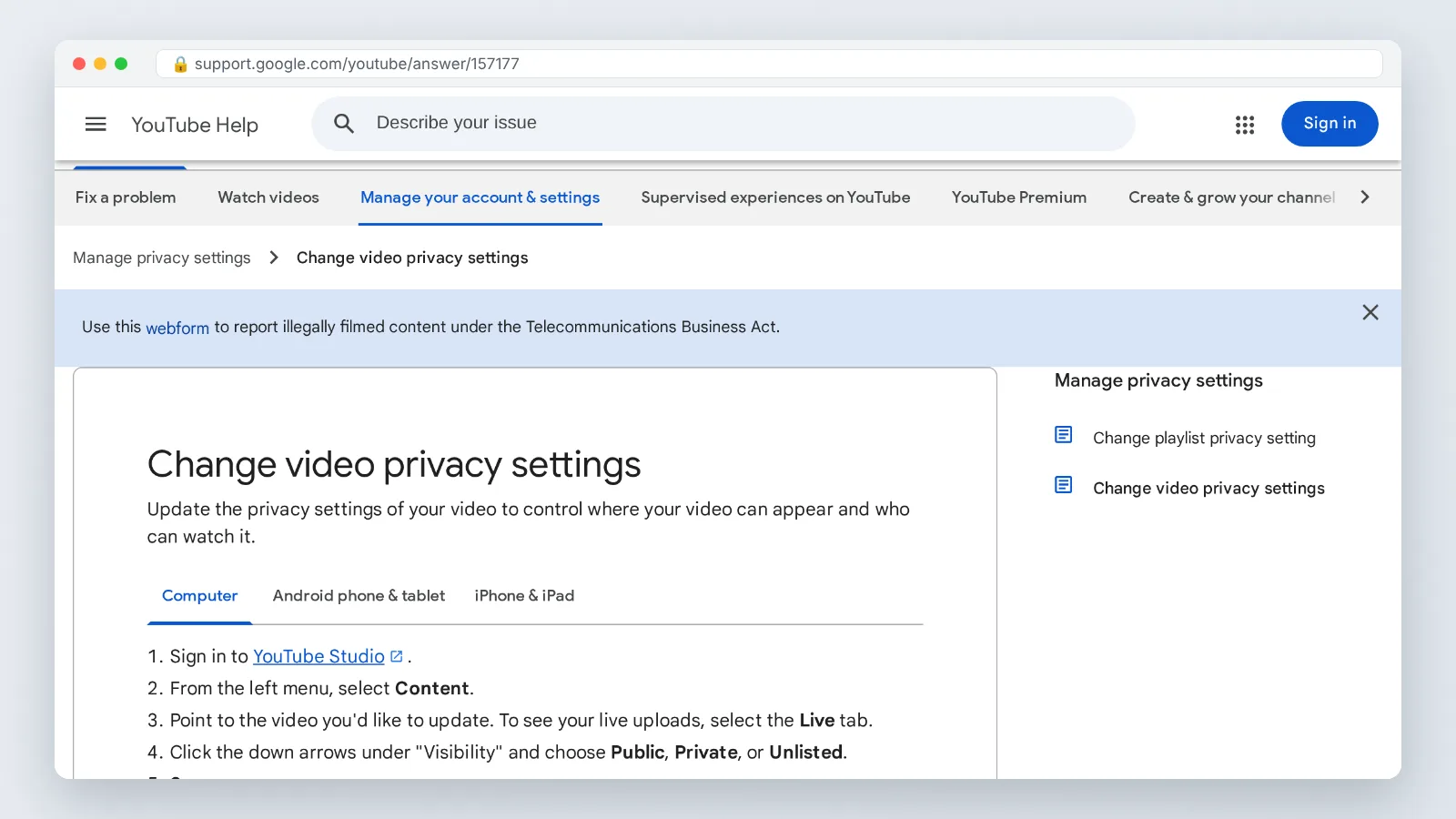
The documented path is short. Open YouTube Studio, go to Content, and pick Public, Private, or Unlisted under the Visibility column, then save — that is the sequence described in YouTube Help for computers.
Hover the video row and click the Visibility value rather than opening the full edit screen. A small dialog appears with the three radio buttons. Choose Private, confirm, and the thumbnail switches to a lock-style label within a second or two.
Two details catch people out. Scheduled videos have their own state, so a video set to publish next Tuesday needs its schedule cleared before Private sticks cleanly. Premieres behave the same way, because the countdown page itself is public.
On Android and iOS you can change visibility inside the YouTube Studio app, which is fine for one urgent video. Anything larger belongs on desktop, where the bulk tools live. Reload the Content page afterwards and confirm the column really reads Private — a dropped connection can silently abandon the change.
Step 3 — Bulk-switch your whole back catalogue to Private
Time: 10 to 20 minutes for a mid-sized library. What you need: desktop Studio and an uninterrupted 10 to 20 minutes, because this is hard to undo selectively.
Go to Content, then tick the master checkbox at the top of the video list. In current Studio builds it selects only the videos loaded on the current page, not your entire archive, so you repeat the action page by page until the library is done.
With rows selected, open the Edit dropdown, choose Visibility, pick Private, and submit the batch — that is the bulk flow in current Studio builds. Studio shows a progress strip while it processes.
Four things to handle before you click, again as current Studio builds organize them:
- Shorts sit in their own tab and need the same treatment.
- Live streams and past broadcasts appear under Live, not Videos.
- Playlists keep their own visibility setting, independent of the videos inside them.
- Community posts stay public until you delete them individually.
A private video stops earning watch time immediately, and monetized channels lose the revenue those views would have produced. Download anything you may want to re-upload later, because privatizing does not create a backup. In current Studio builds, the Content page also lets you export your list first, which makes reversing the change far less painful.
Step 4 — Share private videos with specific people (and respect the 50-account cap)
Time: 2 to 3 minutes per video. What you need: the exact Google account email addresses of your viewers.
Open the video in Studio, click Visibility, select Private, then use the share option inside that dialog to enter email addresses. Each recipient gets an invitation and must sign in with that exact account to watch. Forwarding the link to a different address fails.
A private YouTube video can only be shared by individual invitation with a maximum of 50 other YouTube accounts, Tubefilter reports. That cap makes private sharing workable for a client review, a school class or an investor group — and unworkable for a mailing list.
Plan around the ceiling:
- Client work: invite the two or three approvers, not the whole agency.
- Course content: use unlisted plus a gated page if your cohort is large, accepting the search risk.
- Family videos: invite the specific relatives and re-check the list yearly.
Remember that comments are off on private videos, so feedback has to arrive by email or chat. Private videos also cannot be embedded for public viewing on a website, which rules them out for landing pages.
Step 5 — Hide the entire channel from Settings › Channel › Advanced settings
Time: about 5 minutes. What you need: a desktop or laptop and your Google password for re-authentication.
In current Studio builds, click your avatar, open Settings, choose Channel, then Advanced settings. Scroll to the removal section, select the option to remove YouTube content, sign in again, and open the tab for hiding rather than deleting. Tick the confirmation boxes and submit.
According to YouTube Help, hiding a channel is reversible and privatizes the channel name, videos, likes, subscriptions and subscribers rather than deleting them. The help page’s list stops at those five items.
Un-hiding is done from the same screen. YouTube Help warns that after you un-hide a channel, view counts may be wrong and can take up to a week to update, so do not panic when the numbers look off on day one.
Deleting is the other door, and it is one-way. YouTube Help states that deleting a channel is permanent, wipes videos, comments, messages, playlists and history, and cannot be done from a mobile device. Choose hide unless you are certain you want nothing back.
Your pre-save privacy checklist
Run this before you close the tab. Each line takes under a minute, and together they catch the gaps that leave content exposed after you thought the job was finished.
- ☐ Every video in the Videos tab reads Private in the Visibility column.
- ☐ The Shorts tab has been switched separately.
- ☐ Past live streams and scheduled premieres are covered.
- ☐ Playlists are set to private, including any playlist that contains an unlisted video.
- ☐ Community posts you no longer want public are deleted.
- ☐ Your channel banner, description and links do not reveal what you are hiding.
- ☐ Private invitations list only current, correct Google addresses, and the list stays under the 50-account maximum Tubefilter reports.
- ☐ You have downloaded source files for anything you might republish.
- ☐ You signed out and loaded your channel URL in a private browsing window to confirm what strangers see.
That last check matters more than the rest. Signed in as the owner, Studio shows you everything, so your own view is the least reliable test of privacy. An incognito window is the closest thing you have to a stranger’s screen.
Common mistakes that leave a "private" channel exposed
The most frequent failure is treating unlisted as private. A creator shares an unlisted link with a client, the client saves it to a public playlist, and the video becomes searchable — exactly the scenario YouTube Help describes. Avoid it by using Private with named invitations for anything genuinely sensitive, and reserving unlisted for content you would merely rather not promote.
History supports the caution. YouTube Help records that on 23 July 2021 the platform automatically switched older unlisted videos to private unless the creator opted out, and that forced switch applied only to unlisted videos uploaded before 1 January 2017.
Three more traps:
- Assuming hidden means deleted. A hidden channel is restorable, and so is everything in it.
- Forgetting embeds. Pages that embedded a now-private video show an error, which tells visitors something used to be there.
- Ignoring copies. Anything previously public may already be downloaded or re-uploaded, and privacy settings cannot reach those files.
Check your channel from a logged-out browser once a quarter. Settings drift as you upload, and a single public Short undoes an otherwise careful setup.
Frequently asked questions
Does making a video private delete it?
No. A private video stays in your YouTube Studio library with its file, title, description and analytics intact, and you can switch it back to public or unlisted at any time from the Visibility column on the Content page.
How many people can watch a private YouTube video?
A private YouTube video can only be shared by individual invitation with a maximum of 50 other YouTube accounts, Tubefilter reports. Each invited person must sign in with the exact Google account you invited, because forwarded links do not work.
Why are comments missing on my private video?
According to YouTube Help, making a video private switches off comments entirely, so creators who still want feedback have to use unlisted instead. Collect notes by email or a shared doc if you need reviewer input on a private cut.
Can I hide my YouTube channel and bring it back later?
Yes. YouTube Help states that hiding a channel is reversible and privatizes the channel name, videos, likes, subscriptions and subscribers rather than deleting them, though view counts may be wrong for up to a week after you un-hide.
What happened to old unlisted videos in 2021?
YouTube Help records that on 23 July 2021 YouTube automatically switched older unlisted videos to private unless the creator opted out, and that change applied only to unlisted videos uploaded before 1 January 2017.
Sources
- Change video privacy settings – Computer – YouTube Help
- Change video privacy settings – Android phone and tablet – YouTube Help
- YouTube To Make All ‘Unlisted’ Videos Uploaded Before 2017 ‘Private’ — But Creators Can Opt Out (Tubefilter)
- Older unlisted content – YouTube Help
- Delete or hide your YouTube channel – YouTube Help
This article was drafted with AI assistance and published by the YouTube Creators Editorial Team after its facts were checked against the sources listed above.