A converting youtube channel trailer opens with one promise for non-subscribers, proves it with 2-3 clips, runs 30-60 seconds, and ends with a single subscribe ask backed by an end screen, watermark and custom thumbnail.
Quick steps — what a converting trailer needs
A stranger lands on your channel page, skims two thumbnails, and decides in seconds whether you are worth a subscription. The trailer is your answer to that moment. Five actions get you there:
- Pick one promise — the single result a new viewer gets by subscribing.
- Write 30–60 seconds of script built around that promise and one call to action.
- Record or generate the footage and voiceover, then add captions.
- Add the subscribe layer: end screen element, branding watermark, custom thumbnail.
- Publish the video, then assign it in YouTube Studio under Customization → Home tab.
Order matters. The script decides whether the trailer persuades anyone; the settings only decide whether the subscribe button is reachable when it does. According to YouTube Help, the trailer’s job is to preview the channel so viewers can learn more and subscribe, and it is shown to people who haven’t subscribed.
That detail should change how you write. You are not talking to your regulars — you are talking to someone who has never heard your voice. Cut anything that assumes prior knowledge: inside jokes, episode numbers, "as you all know by now."
What to decide first: length, format and YouTube settings
Settle the mechanical choices before you write a word, because two of them change the script. A trailer that runs 18 seconds cannot carry a clickable subscribe prompt, and a trailer shot vertically will not sit comfortably in the channel home player.
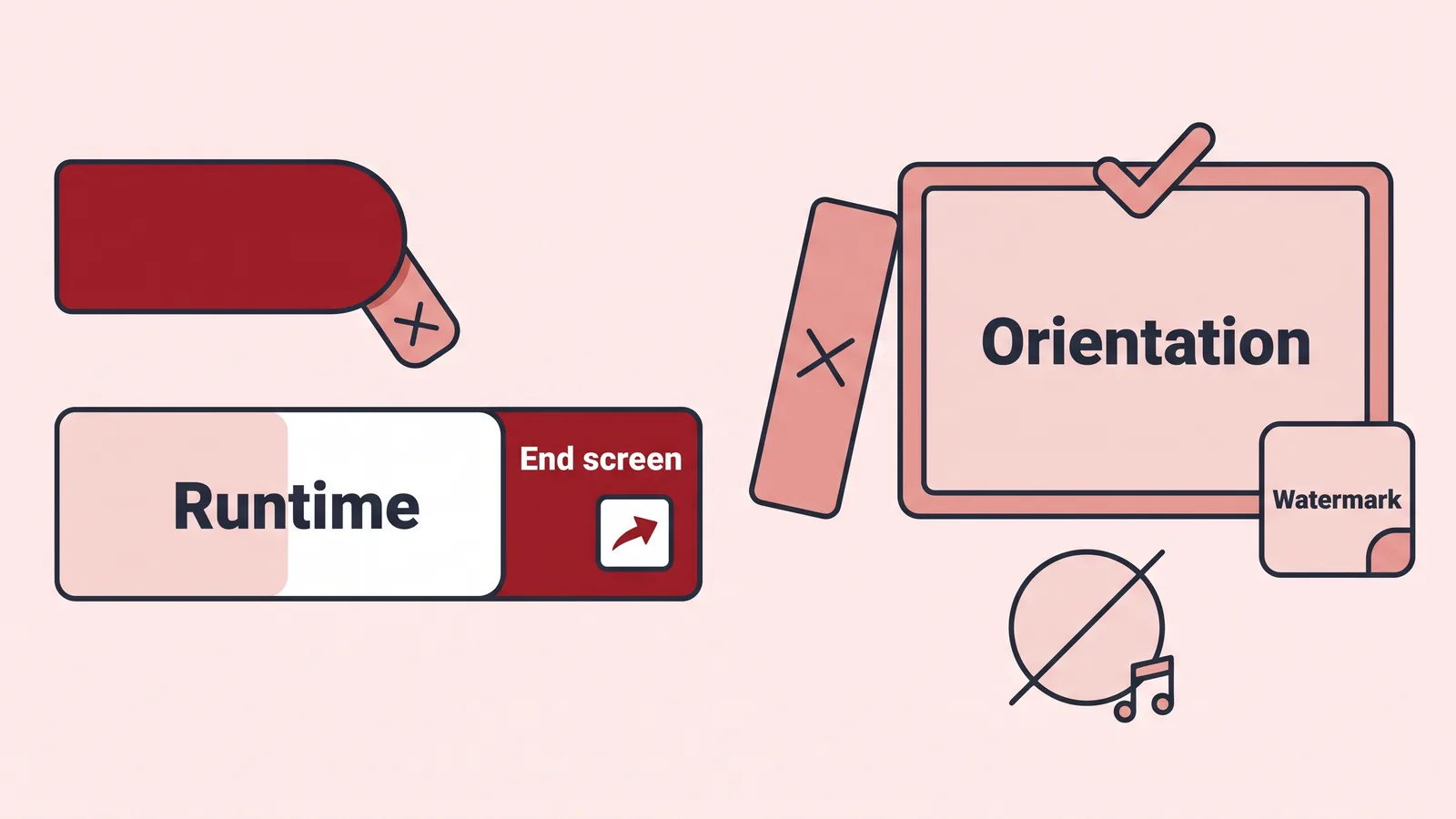
| Decision | What to pick | Rule or reason |
|---|---|---|
| Runtime | 30–60 seconds | Long enough for a promise, proof and one ask |
| Minimum length | At least 25 seconds | YouTube Help: a video must run at least 25 seconds for an end screen to be available |
| End screen window | Last 5–20 seconds | YouTube Help: end screens can only occupy the last 5–20 seconds |
| Orientation | Horizontal 16:9 | Matches the player on the channel Home tab |
| Watermark image | Square, at least 150 x 150 px, under 1 MB | YouTube Help requirement for the subscribe watermark |
| Thumbnail | 3840 x 2160 px | YouTube currently recommends this resolution for video thumbnails (2160 x 3840 for Shorts) |
| Monetization | Leave default | YouTube Help: ads do not run on a channel trailer by default |
| Where it lives | Customization → Home tab | Added through ADD section → Channel trailer |
One setting surprises creators who monetize everything else. YouTube Help states that by default YouTube does not run ads on a channel trailer unless the video contains third-party claimed content. Treat the trailer as a conversion asset, not an earner — which is also a good argument for keeping licensed music out of it.
Decide now whether the trailer shows your face. Both work, and the choice drives the whole production step rather than the script.
Step 1 — Write a 30–60 second script around one promise and one call to action
Time needed: about 45 minutes. What to have open: your five best-performing videos and a blank document.
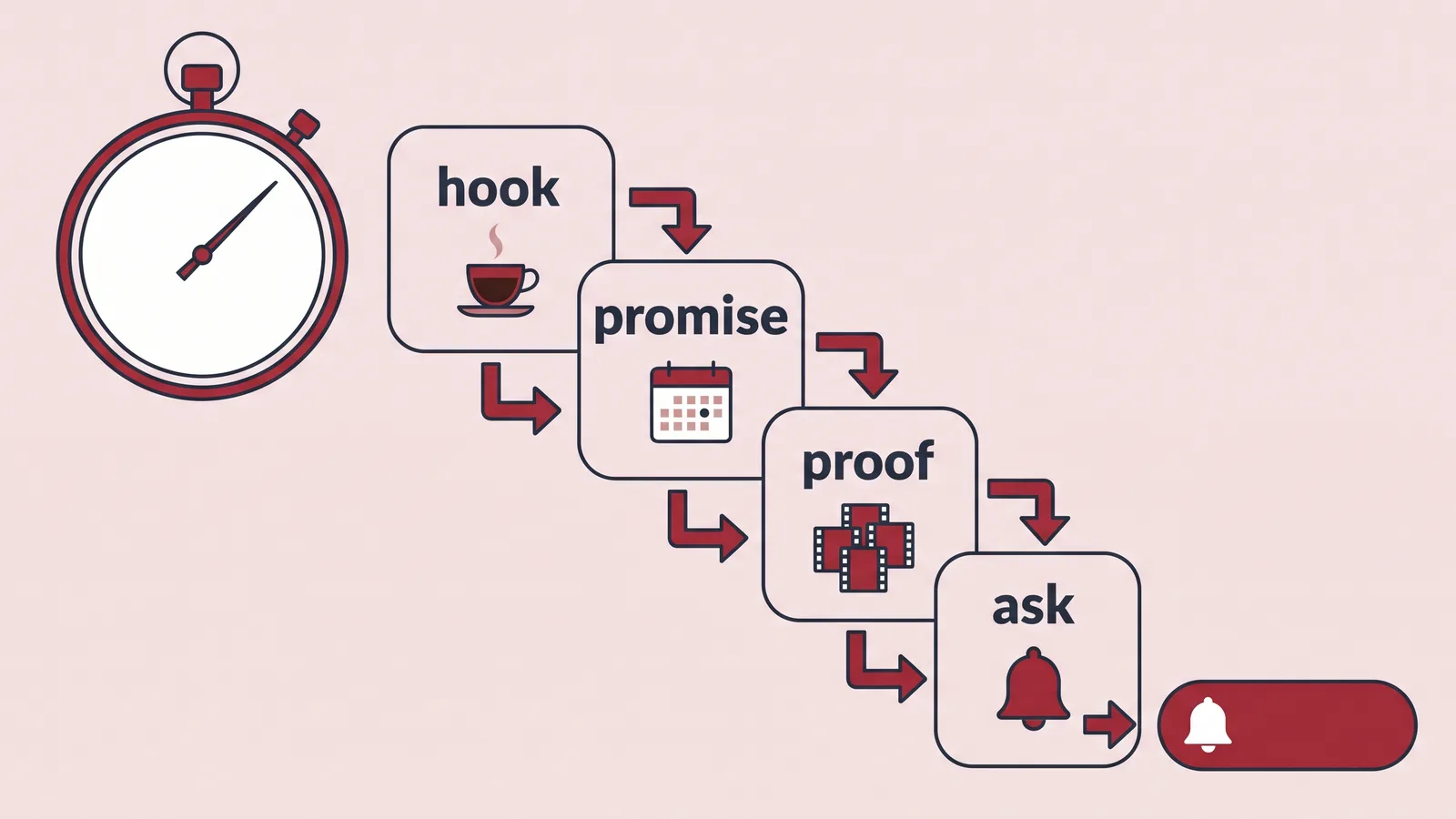
Write to four beats, in this order: hook, promise, proof, ask. The hook names the viewer’s problem in the first line. The promise says what the channel delivers and how often. The proof is two or three sentences of evidence — results, credentials, clip descriptions. The ask is one sentence.
Example skeleton for a home-espresso channel:
"Your espresso tastes sour and you don’t know why. Every Tuesday I pull one shot apart — grind, dose, water, pressure — until it’s fixable in under ten minutes. No $3,000 machines, no coffee-snob vocabulary. Subscribe and your next shot gets better."
As an editorial guideline rather than a YouTube rule, keep the whole script under roughly 150 words; spoken at a natural pace, that lands near a minute. Read it out loud and cut every clause you stumble over. If you are still hunting for the promise, a pass through topic ideas that already pull search traffic for new channels usually surfaces the pattern your best videos share.
One rule saves most trailers: no channel history. Nobody subscribes because you started posting in 2024.
Step 2 — Record or generate the trailer footage, voiceover and captions
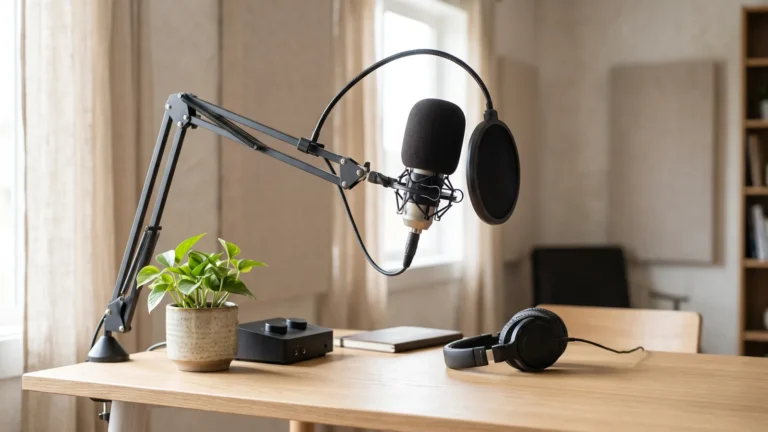
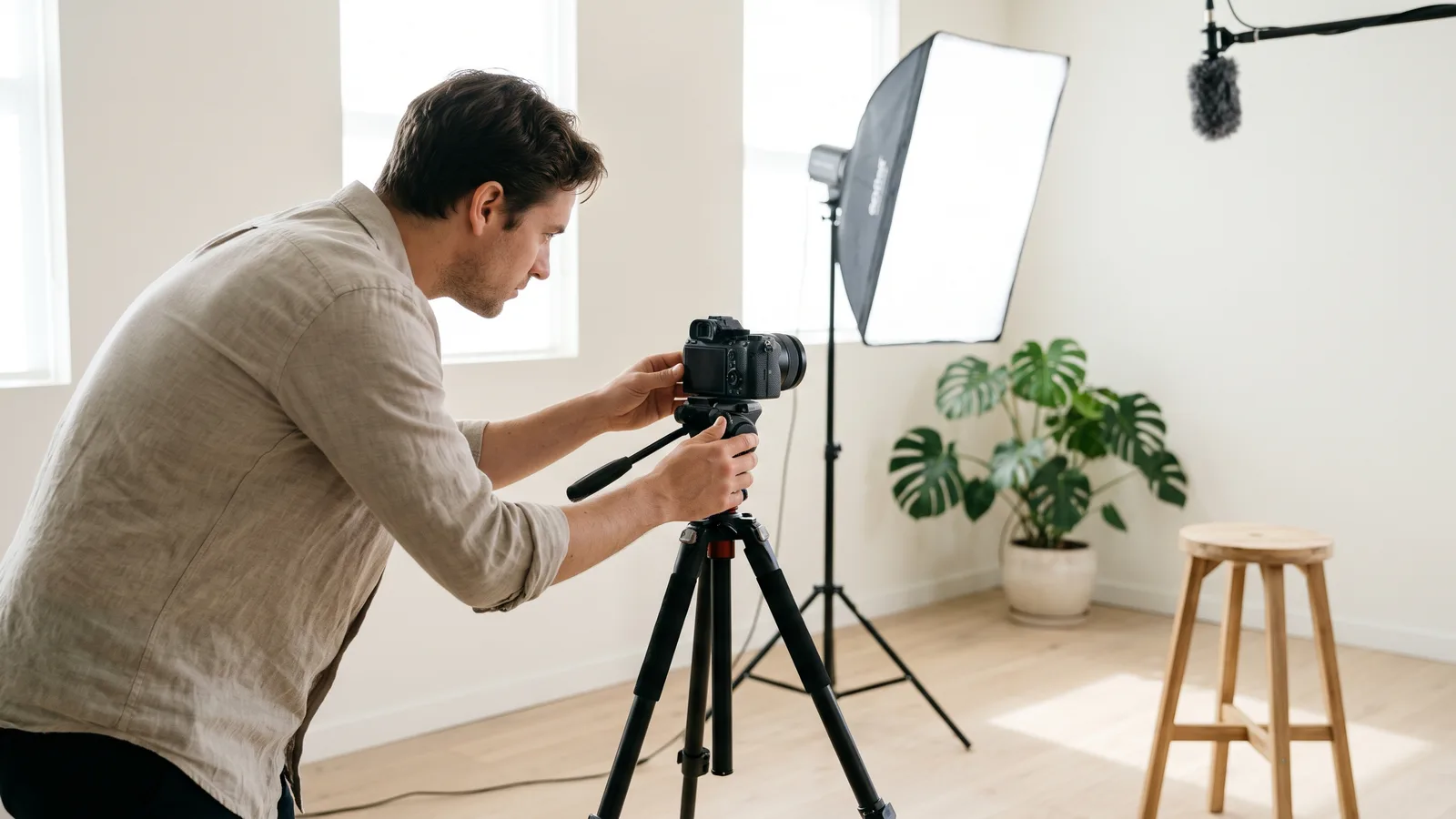
Time needed: one to three hours. What you need: a camera or phone on a tripod, one light source facing you, a microphone close to your mouth, and your three strongest clips exported.
Record the spoken part in one take if you can, then cut the proof section over B-roll from existing videos. Audio quality matters more than resolution here — a clean voice over mediocre footage converts better than the reverse. Burn in captions or upload a subtitle file, since many visitors will hit your channel page with sound off.
(Optional) If you present without appearing on camera, a text-to-video tool can carry the voiceover and on-screen delivery: AI Studios, DeepBrain AI’s cloud platform for AI avatar videos and text-to-video, can turn the finished script into a presenter-led cut, though its Free plan allows only 3 videos of up to 1 minute each, exported in 720p (as of October 2026). Never present a synthetic voice or avatar as a real person’s on-camera work.
For the wider trade-offs of staying off camera, the breakdown of what a faceless channel actually involves and whether it pays is a useful sanity check before you commit to a format.
Step 3 — Add the subscribe layer: end screen, branding watermark and thumbnail
Time needed: about 20 minutes in YouTube Studio after the upload finishes.
The spoken ask needs something clickable behind it. YouTube Help states that end screens can only occupy the last 5–20 seconds of a video, so design your final beat around that window — hold on a clean frame, keep the voiceover talking, and place the subscribe element where nothing important sits underneath.
The watermark is the second layer. YouTube Help specifies that the clickable subscribe watermark must be a square image of at least 150 x 150 pixels and under 1 MB. Set its display time to "End of video" and, per YouTube Help, it appears for the final 15 seconds — overlapping your spoken subscribe ask almost exactly.
The thumbnail is the third. YouTube currently recommends custom thumbnails at 3840 x 2160 pixels for videos — the same Help page lists 2160 x 3840 for Shorts, if you cut a vertical version — and that applies to the trailer, which still appears as a thumbnail in search, suggested feeds and your Videos tab. Use a frame showing your face or your subject, plus three or four words at most.
Step 4 — Set the video as your channel trailer in YouTube Studio
Time needed: five minutes. Prerequisite: the video is uploaded and has finished processing.
According to YouTube Help, you set a channel trailer in YouTube Studio under Customization → Home tab, by clicking ADD section, choosing Channel trailer, selecting a video, and clicking Publish. Nothing about this is automatic — uploading a video called "Channel Trailer" does nothing until you complete that path.
YouTube Help notes the trailer is shown to people who haven’t subscribed, so you will not see it on your own channel while signed in. Open your channel URL in a private browser window to see what a first-time visitor sees.
The ADD section menu lists other layout blocks too. The trailer is the one aimed at non-subscribers, so treat the rest of the Home tab as the supporting act: the sections directly beneath it should answer "what do I watch next?" within one scroll.
Check it works: verify the trailer and read the right analytics
Start with the visitor view. Load your channel in an incognito window on desktop and on a phone, confirm the trailer plays in the Home tab, and watch it with the sound off to see whether the captions alone still deliver the promise.
Then check the subscribe path. Click the end screen element yourself, confirm the watermark appears in the final seconds, and make sure the last frame is not a jump-cut to black before the ask lands.
For numbers, open Analytics for that one video and read subscribers gained, not views. Views measure channel-page traffic; subscribers gained measures whether the script did its job. Audience retention on a 45-second video tells you exactly which sentence loses people — if the curve falls off a cliff before the ten-second mark, the hook is the problem, not the production.
YouTube’s own advice for turning new viewers into subscribers is to put the best or most relevant videos in the top section and to have a channel trailer, so judge the two together. If you are tracking progress toward monetization thresholds, the 90-day plan for reaching 1,000 subscribers explains how trailer conversions fit into the bigger funnel.
Final checklist and the mistake that sinks most trailers
Run this before you call the trailer done:
- ☐ One promise, stated in the first two sentences
- ☐ Runtime of at least 25 seconds, so an end screen is available at all
- ☐ One call to action, spoken once, near the end
- ☐ End screen subscribe element inside the last 5–20 seconds
- ☐ Square watermark of at least 150 x 150 pixels, under 1 MB, set to show at the end of the video
- ☐ Custom thumbnail at 3840 x 2160 pixels (2160 x 3840 for a Shorts cut)
- ☐ Captions present and readable with sound off
- ☐ Trailer assigned under Customization → Home tab → ADD section → Channel trailer, then published
- ☐ Verified in a signed-out browser window
The common failure is the highlight reel. Creators cut fifteen fast clips of their best moments, add music, and skip the sentence that says what the channel is for. It looks professional and converts badly, because a stranger watching muted footage of someone else’s adventures has no reason to expect anything from next week.
Fix it by narration. Say the promise out loud in the first five seconds, then let the clips prove it — the clips are evidence, not the argument.
Frequently asked questions
How long should a YouTube channel trailer be?
Aim for 30 to 60 seconds. That range leaves room for a promise, proof and one ask, and it clears the technical floor: YouTube Help states a video must run at least 25 seconds before an end screen is available at all.
Where do I set the channel trailer?
According to YouTube Help, you set it in YouTube Studio under Customization → Home tab, then click ADD section, choose Channel trailer, select your video and click Publish. Uploading a video titled "trailer" does nothing on its own.
Who actually sees my channel trailer?
YouTube Help says the trailer is shown to people who haven’t subscribed, and its job is to preview the channel so viewers can learn more and subscribe. That is why you should check it in a signed-out browser window, not your own account.
Do ads run on a channel trailer?
YouTube Help states that by default YouTube does not run ads on a channel trailer unless the video contains third-party claimed content. Treat the trailer as a conversion tool, and avoid licensed music that could trigger a claim and an unwanted ad break.
Can I reuse an existing video as my trailer?
You can select a video that is already uploaded and has finished processing, but a standard episode rarely converts, because it opens for existing viewers. A purpose-built 30-to-60-second cut with a subscribe end screen inside the last 5-20 seconds, as YouTube Help allows, performs better.
Sources
This article was drafted with AI assistance and published by the YouTube Creators Editorial Team after its facts were checked against the sources listed above.